Getting started
Status updates and maintenance notifications
Please ensure you subscribe to our status and maintenance notifications here.
Internet connection
Inevidesk can be used over any internet connection, but will perform much better over AC (5Ghz) WiFi or a cabled connection. Using either of these options will reduce latency and make for a much smoother working experience.
Please use one of these options when you can, especially if working from a frequent location, such as your home or office.
In an office environment your network administrator will be responsible for ensuring you have a sufficiently strong and reliable internet connection.
If you're working from home - there's ways in which you can optimise your home network. You can read more about that here.
Installing the Inevidesk client application
Your vdesk is easily accessible via the Inevidesk client application, which can be installed on any Windows 10/11 or Mac (OSX 10.15 and up) computer. Installers are available from the following links:
If you're using Parsec remote desktop connection software on MacOS
please download and install the Parsec application before installing the Inevidesk application.
Download available here.
Once installed you'll be able to open the application via the Inevidesk desktop icon.
Installation commands
Deploying the Inevidesk client app centrally from a software management system requires you to add the /allusers flag in order to install "computer-wide".
If you plan on using Parsec, a "computer-wide" installation means you will also need to download and manually install Parsec via the following link.
Using the client application
Login
Opening the Inevidesk application will present you with a simple login screen.
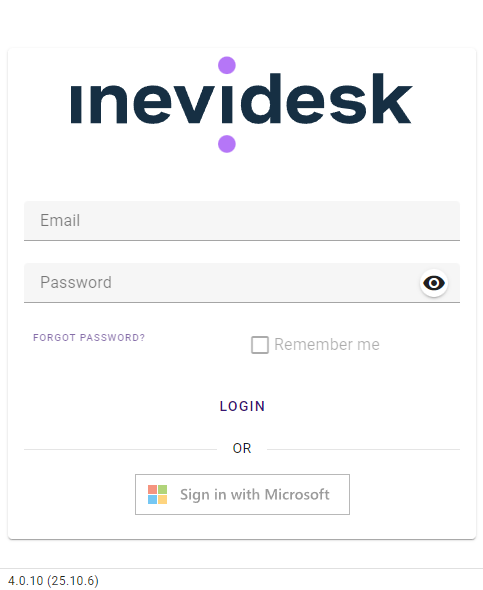
Log in using the email and password credentials provided by your Inevidesk administrator. In case your administrator has enabled multifactor authentication (MFA) you will also need to verify access via your Time-based One-Time password (TOTP) authentication application.
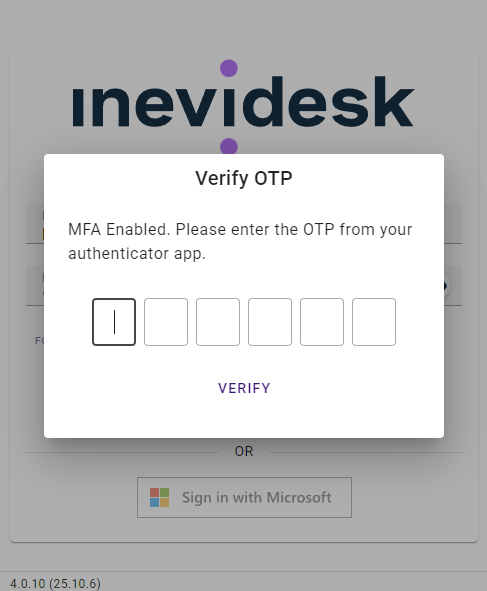
Multifactor authentication is strongly encouraged. Please contact your administrator if you'd like to check that it is enabled.
Controlling your vdesk
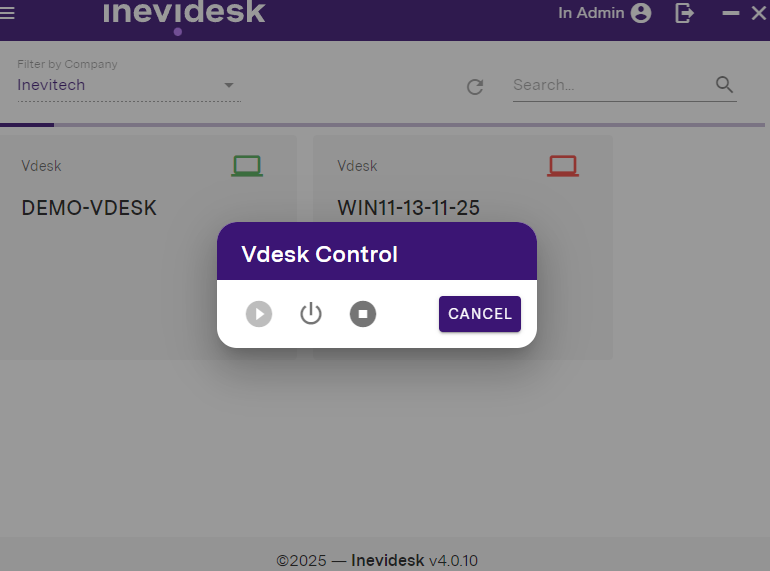
Once logged in the application will present you with the vdesks assigned to your user account. The computer icon in the top right of each tile indicates whether the vdesk is running (green) or not (red), If the icon is amber then the vdesk is in the process of rebooting or shutting down.
Clicking on the icon will allow you to remote power control the vdesk. You have the options to ‘Start’, ‘Shutdown’ or hard ‘Stop’. This can be used to power off a vdesk when not in use or to stop / reboot in case of a freeze.
Connecting to your vdesk
The way in which you connect to your vdesk depends on the remote desktop connection software you're using. If you're using Parsec or Windows RDP, please refer to the respective user guides to continue:
User Guide - Parsec
User Guide - RDP
Troubleshooting
Blank screen
The Inevidesk client application may display a blank screen if it is opened without an active internet connection. Please check your network connection and make sure you are online before launching the application.
If you are connected to the internet and can browse the web but the issue continues, navigate to C:\Users\username\AppData\Roaming, delete the Inevidesk folder, and then restart the application.