User Guide (Parsec)
This guide is for those users of Inevidesk utilising the Parsec remote desktop connection service only.
First login
The first time you connect to your vdesk using Parsec you will need to authorise the creation of a Parsec account via our SSO (single sign on) web page.
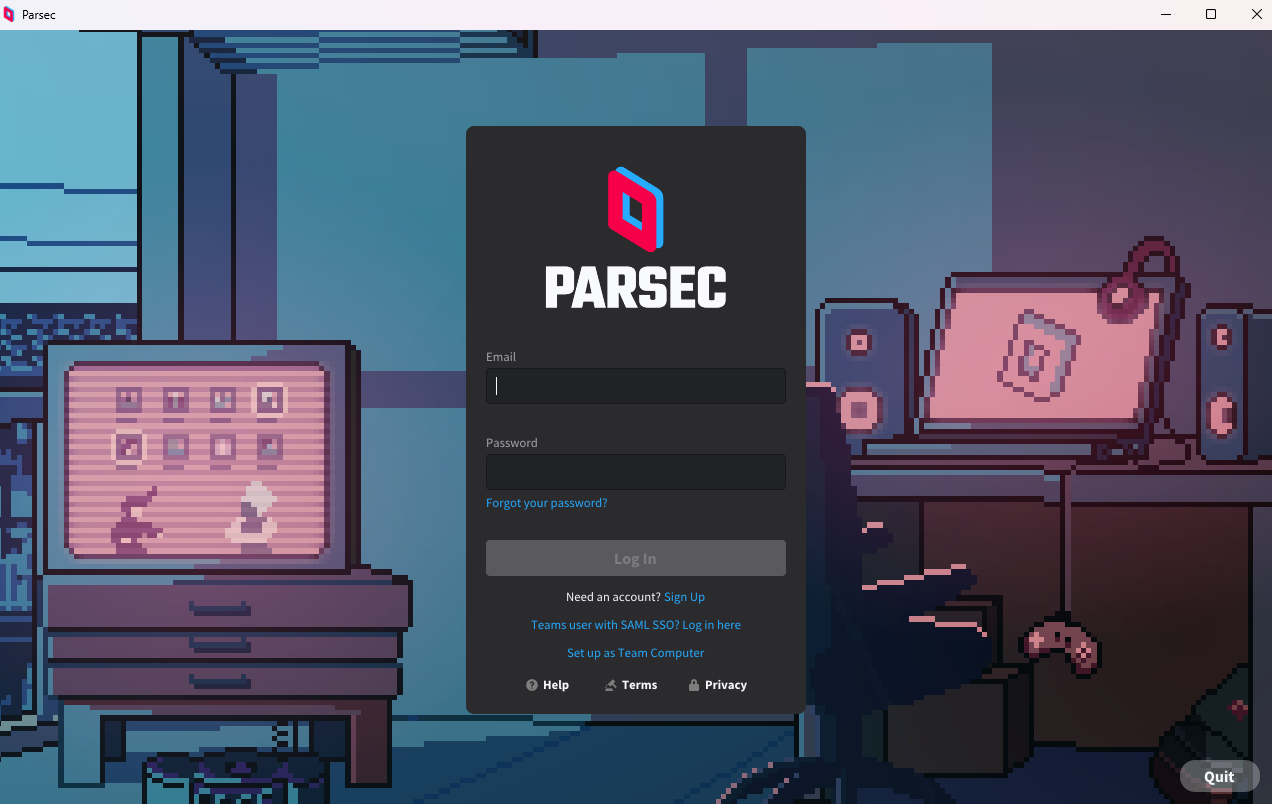
When the Parsec window launches, click on the Teams User with SAML SSO? Log in here link (in blue text under the Log In button).
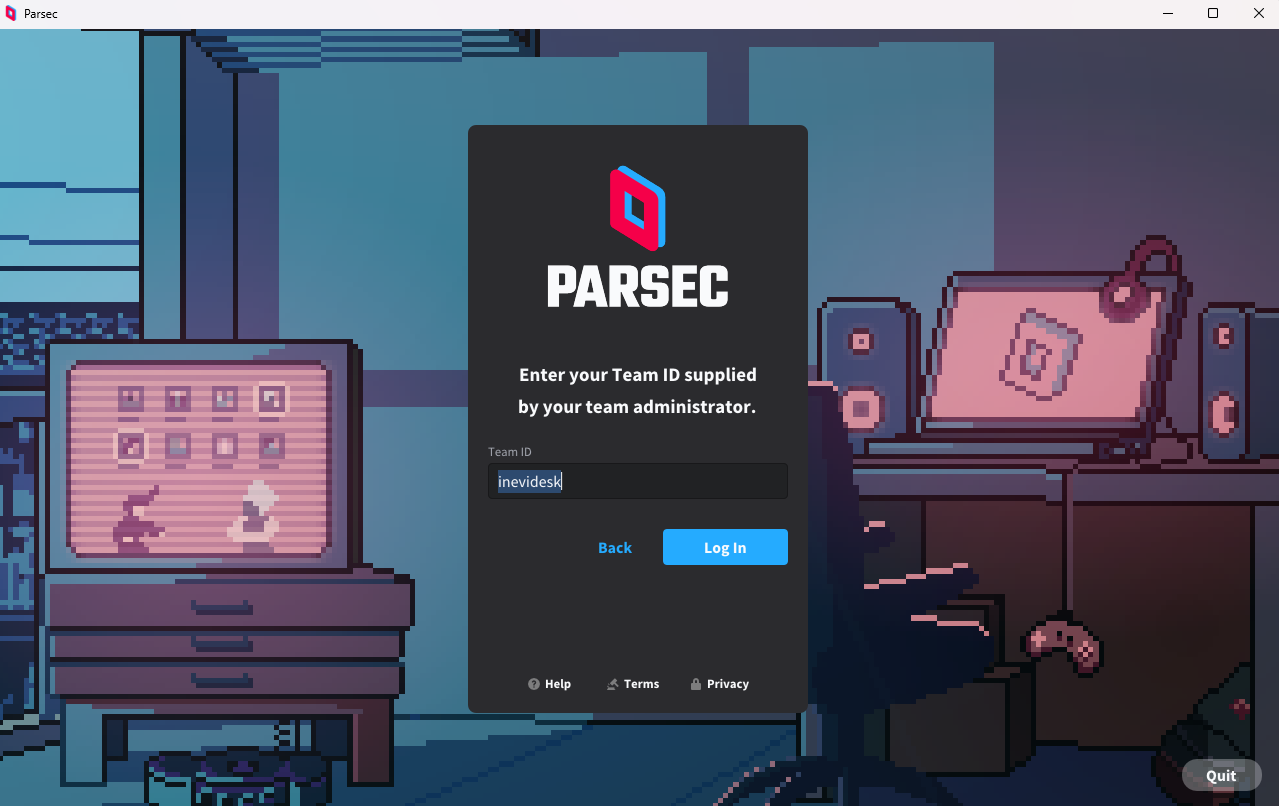
This will take you to another page where the inevidesk team should already be filled out.
Do not change this ID.
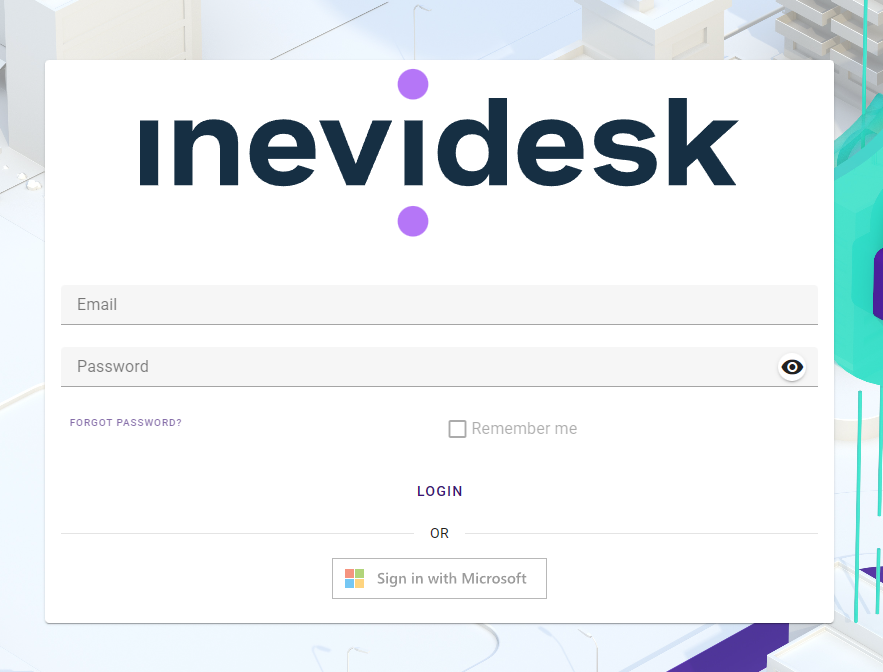
When you click Log In you will be redirected to our SSO page. Log in to this with your normal Inevidesk credentials. You will also receive an email from Parsec that you need to click on the link to verify your email address before you will be able to connect to your vdesk.
Once you successfully authenticate with your Inevidesk credentials you will be redirected back to the Parsec page where you need to click the Authorize button to link your vdesk to your login.
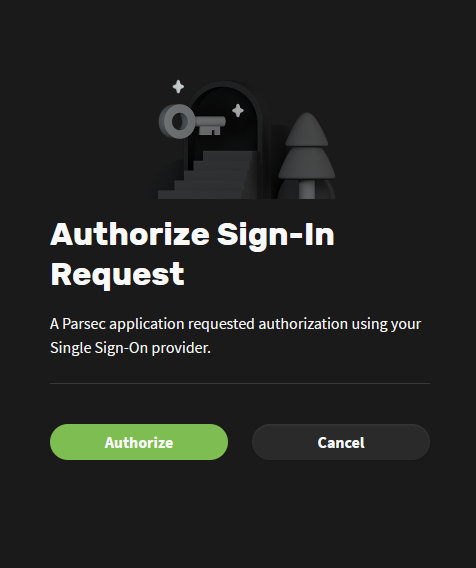
This full process only needs to be completed the first time you log into your vdesk with Parsec. After which your vdesk will launch directly from the application when you connect.
However, you will be asked to re-authorise your account with Parsec on occasion and when you use a different device or connect from a different IP.
Settings
In order to change the Parsec settings, you first need to disconnect from your Parsec session - click on the Parsec icon on the desktop and click Disconnect.
Click on the menu in the top left corner then select Settings and then the Parsec Settings tab to access the display settings for the Parsec client.
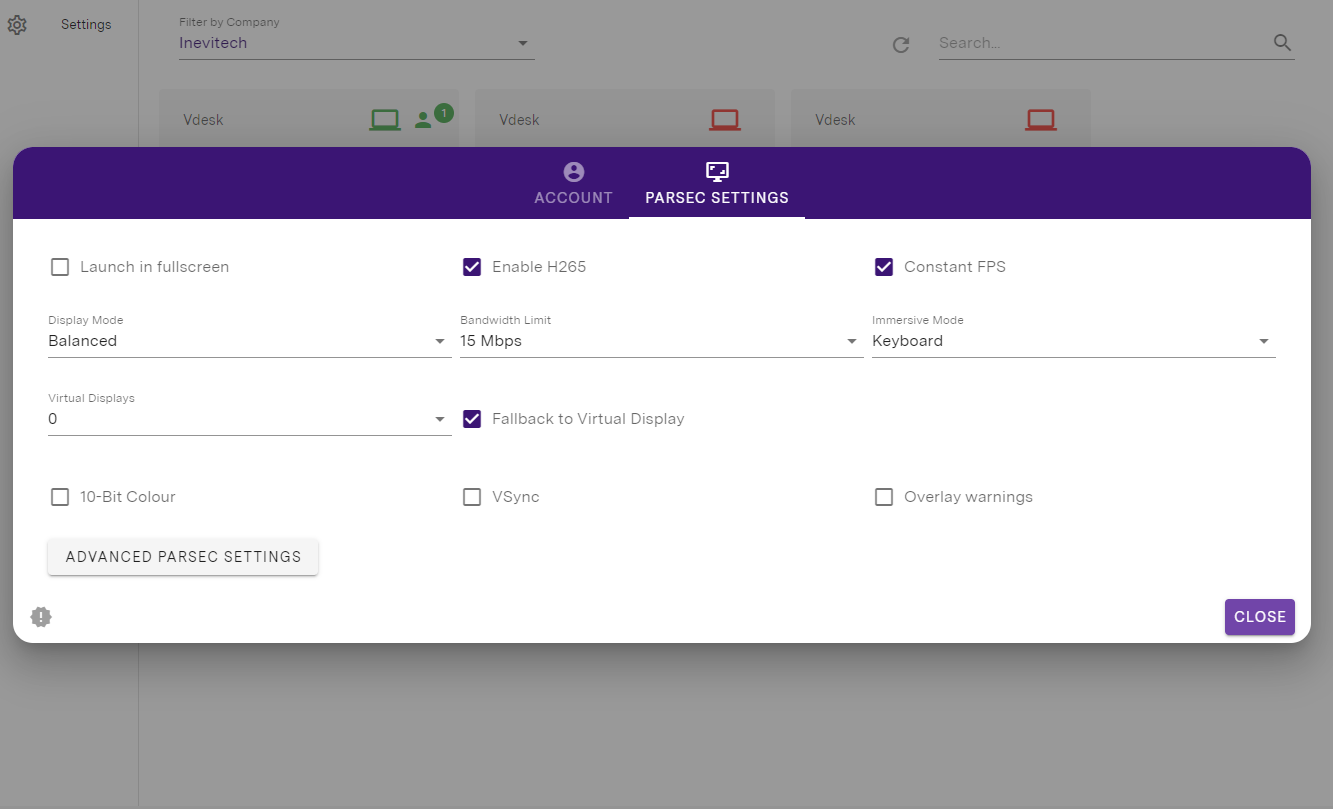
Tick Launch in fullscreen or leave unticked to launch in window mode.
Enable H265 should remain checked at all times unless you are using a computer older than around 7 years (which may need to use H264 decoding).
Set the Display Mode depending on how fast your internet connection is and the latency to your vdesk using the following as guidance:
-
3D - best for video, animation and Revit modelling when you have a strong internet connection - 60 frames per second.
-
Balanced - supports most applications well when you have a good to strong internet connection - 30 frames per second.
-
2D - best for vector-based graphics programmes such as Microstation and Rhino, Office applications and/or when you have a poor internet connection - 15 frames per second.
The Display Mode function enables you to get the optimum performance for the work you need to do and the location you are in at any one time. You should experiment with these options to find the best mode for you.
Set the bandwidth limit to stop the stream from using any more than this amount of bandwidth (note that each additional display you use will take an equal portion of this bandwidth limit). If you having any connectivity issues, please try to lower this setting.
Immersive Mode lets you lock your mouse, keyboard or both to pass your input through to your vdesk (instead of your client device). Disabling immersive mode means your inputs will be sent to your client device instead of your vdesk.
The Virtual Displays dropdown lets you add up to three virtual displays to your vdesk. Tick Fallback to Virtual Display to add a single virtual display to your vdesk if no other displays are present.
10-bit colour will provide you with the best colour accuracy for your stream. This feature requires the most recent client hardware.
VSync allows you to sync your GPU’s frame rate with your monitors refresh rate. Turning this option on can add input latency, but will remove screen tearing.
Parsec may display warning icons alongside the Parsec overlay button in your stream. Use Overlay warnings to disable the icons from appearing in your stream if you find that you aren’t noticing any issues but the are still seeing warning icons in your stream.
Click on the Advanced Parsec Settings button to modify any other features for the Parsec client, such as remapping the keyboard shortcuts.
Overlay menu
Once launched you will find the Parsec menu overlay in the top left of the screen (you can drag this to a new location if you wish).
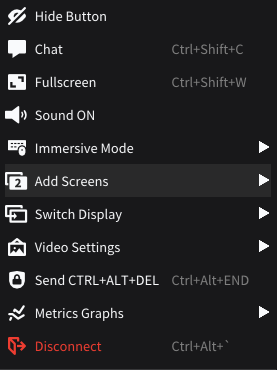
This menu allows you to change a number of options, including:
-
Toggling between Fullscreen and Window mode
-
Enabling 4:4:4 encoding for higher image clarity/ colour resolution.
-
Adding display screens
-
Altering the resolution
-
Changing the bandwidth limit
-
Sending a Ctrl-Alt-Delete command
-
Disconnecting from the vdesk
You can turn off the button by clicking on Hide button at the top of the menu. It can then be recalled with the shortcut Ctrl-Shift-M.
4.4.4 encoding may use your connecting device's CPU if there is no compatible GPU present, which will be slower and more performance hungry than the standard Parsec stream (4.2.0). Also, older devices will not support this feature. If you experience degraded performance with this feature please disable it. More information can be found here.
Dual displays
You should be able to see the Add Screens option in the overlay menu. Selecting this will launch a secondary stream of the vdesk that you can drag to your 2nd display for dual screen functionality. You can also use Ctrl-Shift-S to launch this.
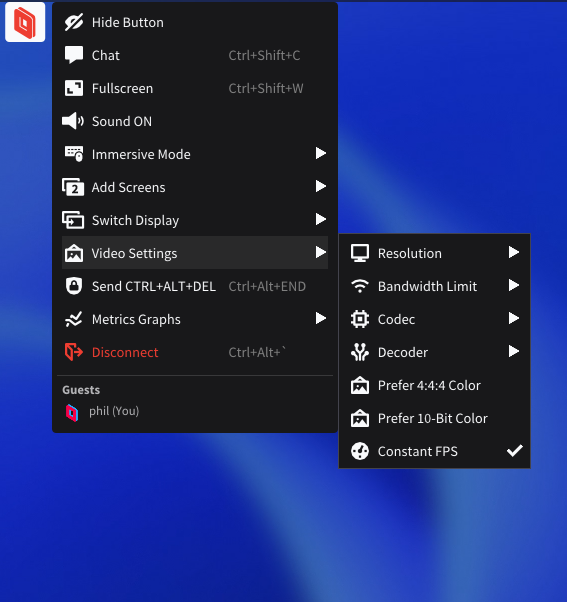
If the Add Screens option is not visible, please right click on your vdesk desktop and select Display Settings. Scroll down to the Multiple Displays option and make sure it is set to Extend these displays.
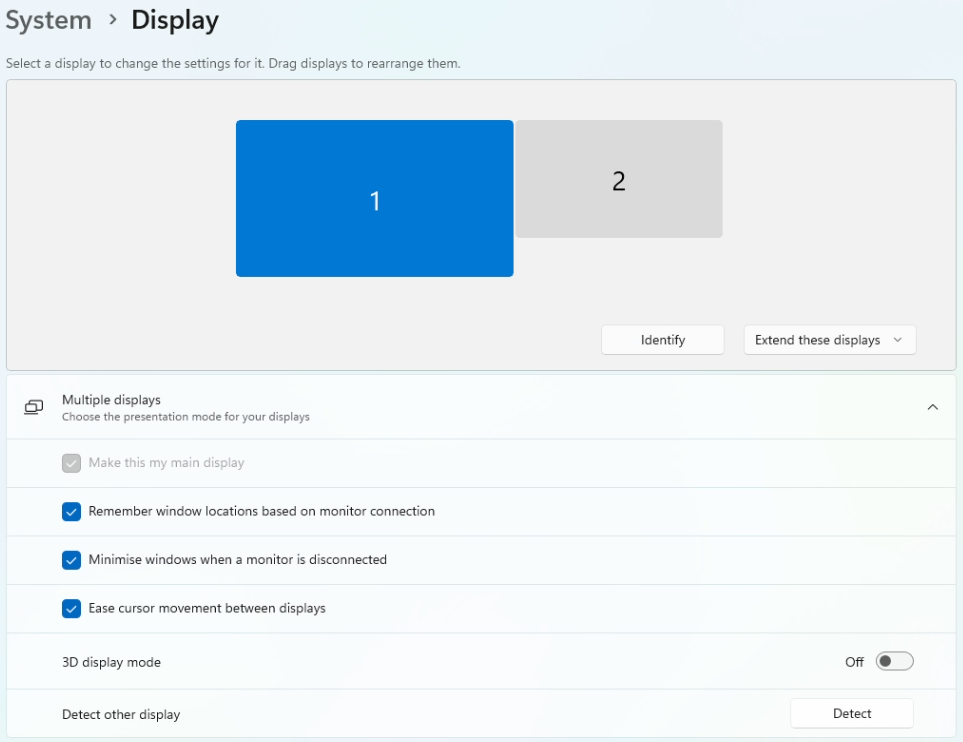
If you use dual displays the 2nd display will not be disabled on your vdesk when you disconnect. Please use the standard Windows display settings to disable the 2nd display if you wish to revert to a single stream.
Parsec also supports a third display. This can be added by request to support@inevidesk.uk.
Display resolution
Depending on your resolution, you may need to adjust the scale to experience a comfortable sizing of text and icons (as you would for any high-resolution display). We recommend 125% for most situations.
Please also note that if you have Resolution set to Use Client Resolution and are running in window mode, the resolution will appear blurry as the vdesk is matching the full resolution of your display.
Switch to full screen (Ctrl-Shift-W) to resolve this. You may also need to add a resolution manually so it correctly matches your physical display if you have a non-standard resolution.
Error codes and troubleshooting
If you experience an error connecting to your vdesk with Parsec you will usually be notified with an error code. To help determine what the problem might be you can refer to the list of Parsec error codes here.
If you experience degradation of your Parsec stream then click on the Parsec overlay menu and real-time latency statistics will be revealed at the top of the screen which will help determine what the problem might be.
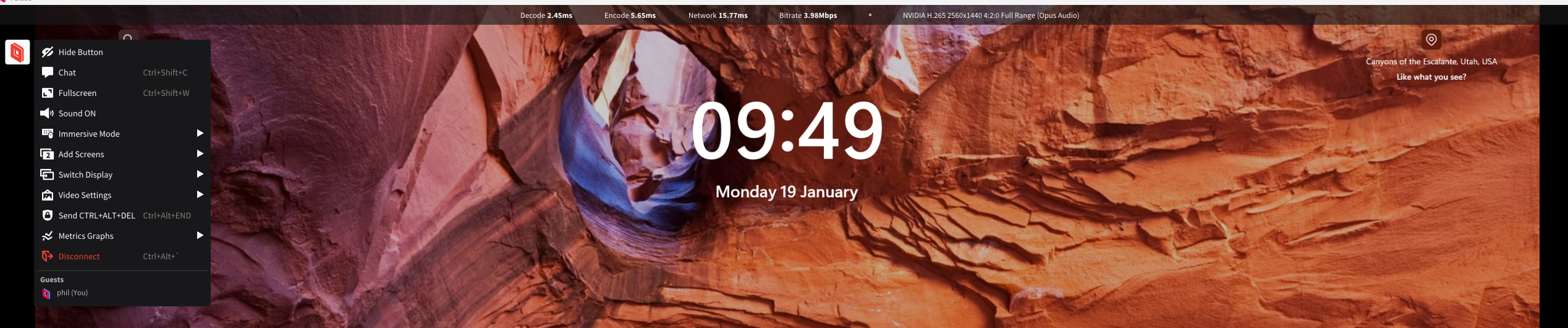
Adjusting the display settings, bandwidth limit and disabling 4:4:4 preference will assist with low bandwidth, higher latency connections.
Please review any issues with your IT administrator or support partner as a first step. They can then escalate to the Inevidesk support team if required.